여러가지 방법이 있습니다만, 본인은 처음부터 많이 발품을 팔아서 실패를 많이 경험을 했습니다.
여러분들은 어렵게 돌지 마시고 한 번에 바로 설치를 했으면 좋겠습니다.
먼저 참조할만한 페이지를 알려 드리겠습니다.
조금이라도 컴퓨터활용을 하시는 분이시라면 조금 더 도움이 될 수 있을것 같습니다.
제일먼저 구글 검색에서 "aseprite 컴파일" 이라고 검색을 하시면 아래와 같이 보일것입니다.
Kido_aseprite/INSTALL.md at main · syskido/Kido_aseprite
Animated sprite editor & pixel art tool (Windows, macOS, Linux) - syskido/Kido_aseprite
github.com
그리고 다음은
다음 플랫폼에서 Aseprite를 성공적으로 컴파일할 수 있을 것입니다(이전 버전 및 최신 버전 모두 작동할 수 있습니다).

Windows 11 + Visual Studio Community 2022 + Windows 11 SDK
중요 : 저희는 MinGW를 지원하지 않습니다.
Visual Studio Community 2019 Installer (C++ Options)
Discover the magic of the internet at Imgur, a community powered entertainment destination. Lift your spirits with funny jokes, trending memes, entertaining gifs, inspiring stories, viral videos, and so much more from users.
imgur.com
그리고
1 . git 을 설치를 합니다.
2 . Aseprite - v1.3.5 버젼을 받아야 합니다.[참고로 최신버젼은 설치가 안 되었음]
3 . cmake
4 . ninja
5 . aseprite skia
그래야 제대로 컴파일이 가능합니다.
https://github.com/aseprite/aseprite/releases/download/v1.3.5/Aseprite-v1.3.5-Source.zip
https://github.com/git-for-windows/git/releases/download/v2.52.0.windows.1/Git-2.52.0-64-bit.exe
Ninja, a small build system with a focus on speed
Ninja is a small build system with a focus on speed. It differs from other build systems in two major respects: it is designed to have its input files generated by a higher-level build system, and it is designed to run builds as fast as possible. Why yet a
ninja-build.org
https://github.com/aseprite/skia/releases/tag/m102-861e4743af
Release Skia-m102 · aseprite/skia
These are pre-built binary packages of branch aseprite-m102 (official Skia commit b627d35). You can create a C:\deps\skia folder (or $HOME/deps/skia) and uncompress the content there, it would be l...
github.com
모두 설치 및 다운로드를 완료 하였다면 그 다음으로 넘어 갑니다.
윈도우 폴드에서 " C:\aseprite " 만들고 그리고 " C:\deps\skia " 를 먼저 만들어 둡니다.
이제부터 설치를 해 나가겠습니다.
다운받은 2번 aseprite 압축파일을 " C:\aseprite " 에 풀어 줍니다.
그리고 먼저 미리 " C:\aseprite\build " 만들어 줍니다.
그 다음 3번 cmake를 설치합니다.
설치하고 난 다음에 4번 ninja 압축파일을 cmake 가 설치되는 위치가 '" C:\Program Files\Cmake 설치가 되어 있을것입니다.
찾아가서 Cmake\bin\ 여기에 ninja 파일을 풀어 줍니다.
아주 중요합니다. 수많은 사람들의 정보들이 많았섰지만
제대로 설명을 한 사람들이 많이 없어 설치 실패를 많이 했습니다.
이제 5번 압축파일을 먼저 만들어 놓은 곳으로 압축파일을 풀어 줍니다.
그럼 이제 그의 마무리 단계까지 왔습니다.
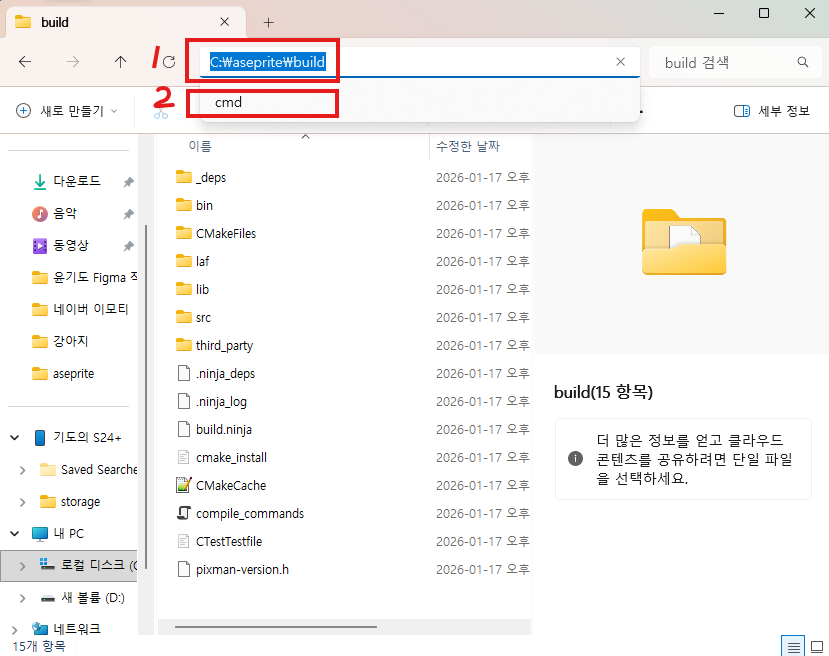
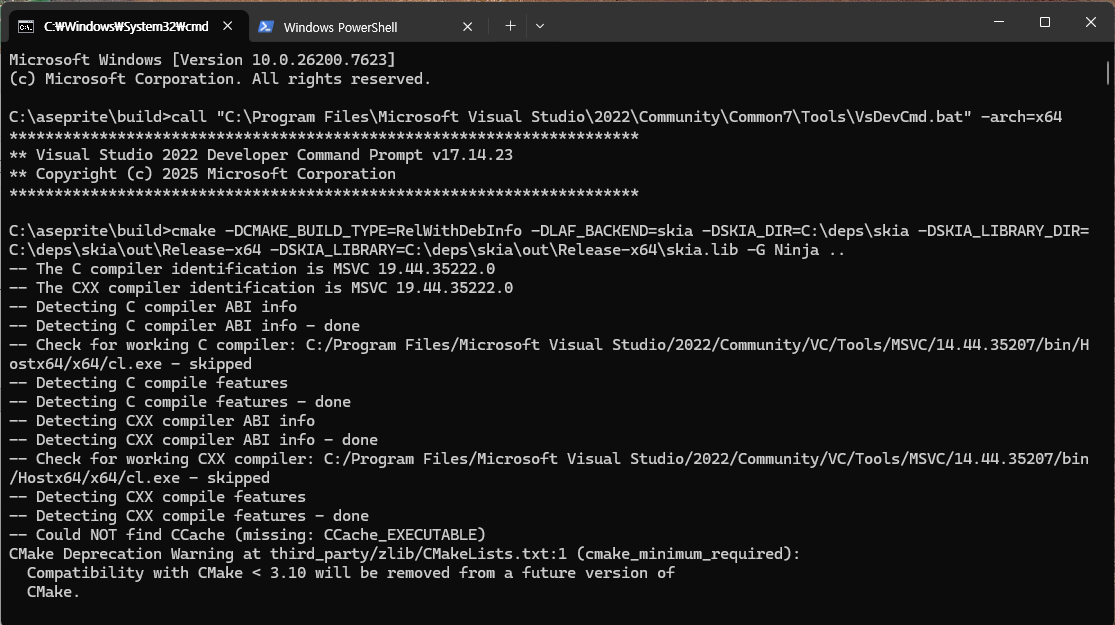
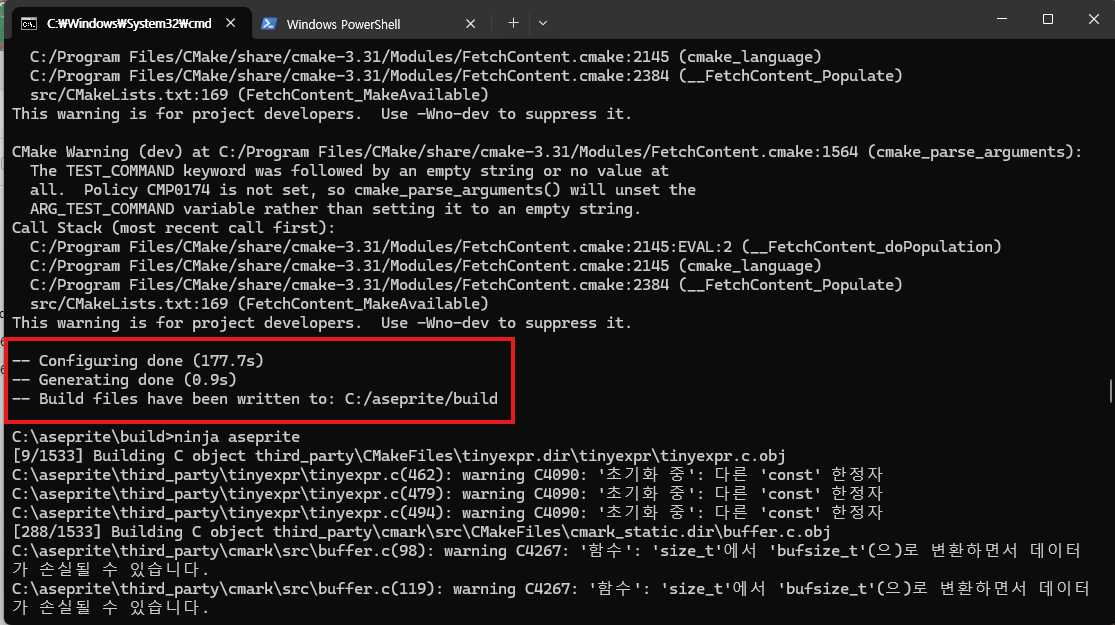

C:\aseprite\build>call "C:\Program Files\Microsoft Visual Studio\2022\Community\Common7\Tools\VsDevCmd.bat" -arch=x64
C:\aseprite\build>cmake -DCMAKE_BUILD_TYPE=RelWithDebInfo -DLAF_BACKEND=skia -DSKIA_DIR=C:\deps\skia -DSKIA_LIBRARY_DIR=C:\deps\skia\out\Release-x64 -DSKIA_LIBRARY=C:\deps\skia\out\Release-x64\skia.lib -G Ninja ..
위에처럼 보이면 설치가 성공적으로 되었음을 알 수 있다.

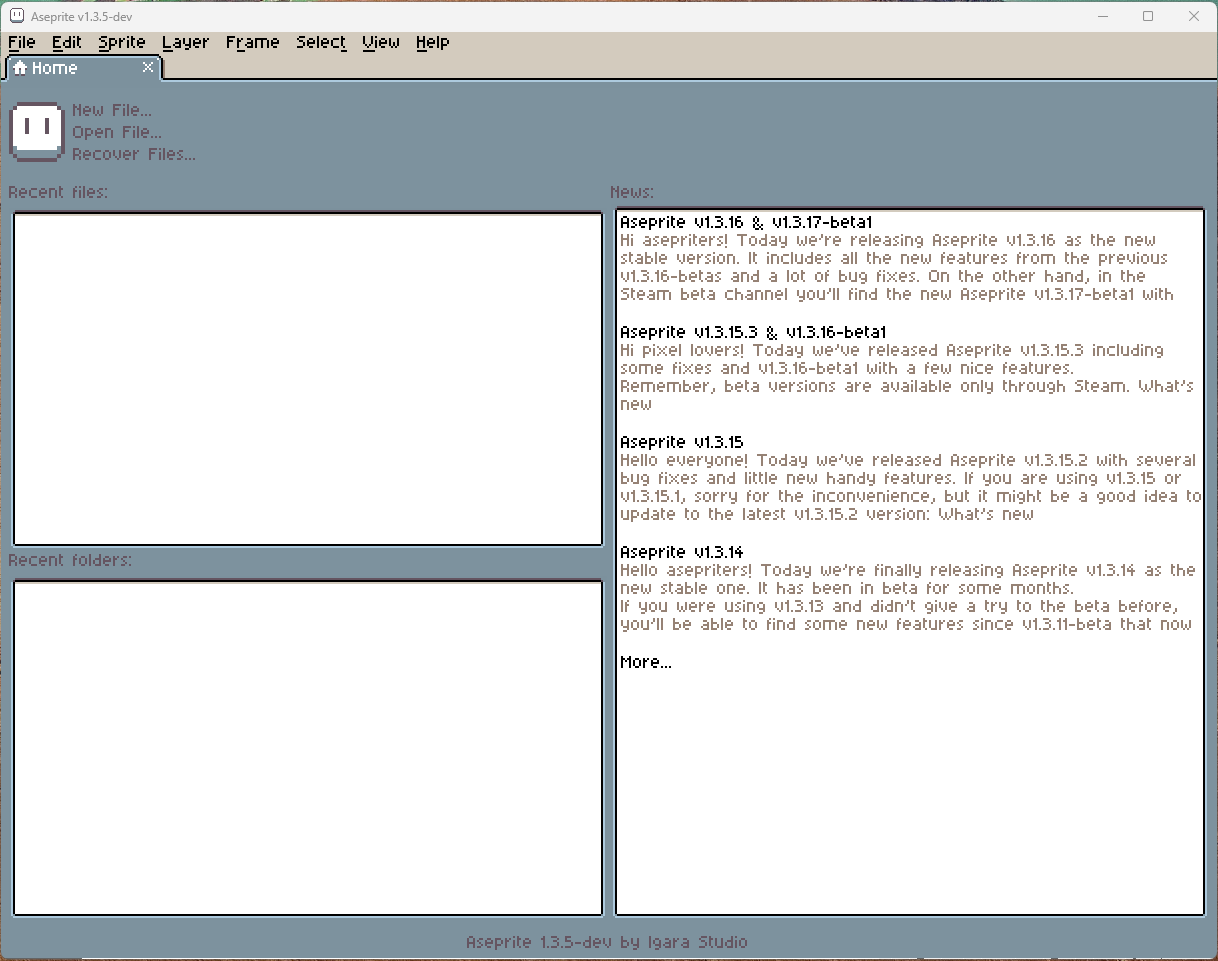
프로그램 실행이 되었다.
이대로 따라왔는데도 안 되면 아래 유튜브 영상을 참조하면서 천천히 따라 해 보시면 완성할 수 있을것이라 생각합니다.
그럼 건투를 빌겠습니다.
'1인 게임 개발자 나령윤기도[Unity, Flutter]' 카테고리의 다른 글
| 1인 게임 개발자가 걸어가는 길은 킬리만자로의 표범과도 같습니다. (0) | 2025.12.07 |
|---|---|
| toonflix main.dart (0) | 2025.10.31 |
| Flutter Word Game core/theme/app_theme.dart (0) | 2025.10.19 |
| Flutter Word Game core/theme/app_fonts.dart (0) | 2025.10.19 |
| Flutter Word Game core/theme/app_colors.dart (0) | 2025.10.19 |